





- Active installs
- 10+
- Last updated
- 7 months ago
- Version
- 1.0.20
- Tested up to
- WP 6.9.10
About this plugin
MenuPilot is a focused menu import and export plugin designed to help you move one menu at a time between WordPress sites with confidence.
Unlike basic import tools, MenuPilot shows you exactly what will happen before anything is imported. You can review the menu structure, see which items match existing content, resolve missing items, and proceed only when everything is clear.
This makes MenuPilot ideal for moving menus from staging to production, local development to live sites, or between similar environments — without overwriting existing menus or breaking links silently.
What MenuPilot Does
- Exports a single navigation menu as a JSON file
- Imports a menu as a new menu (never overwrites existing menus)
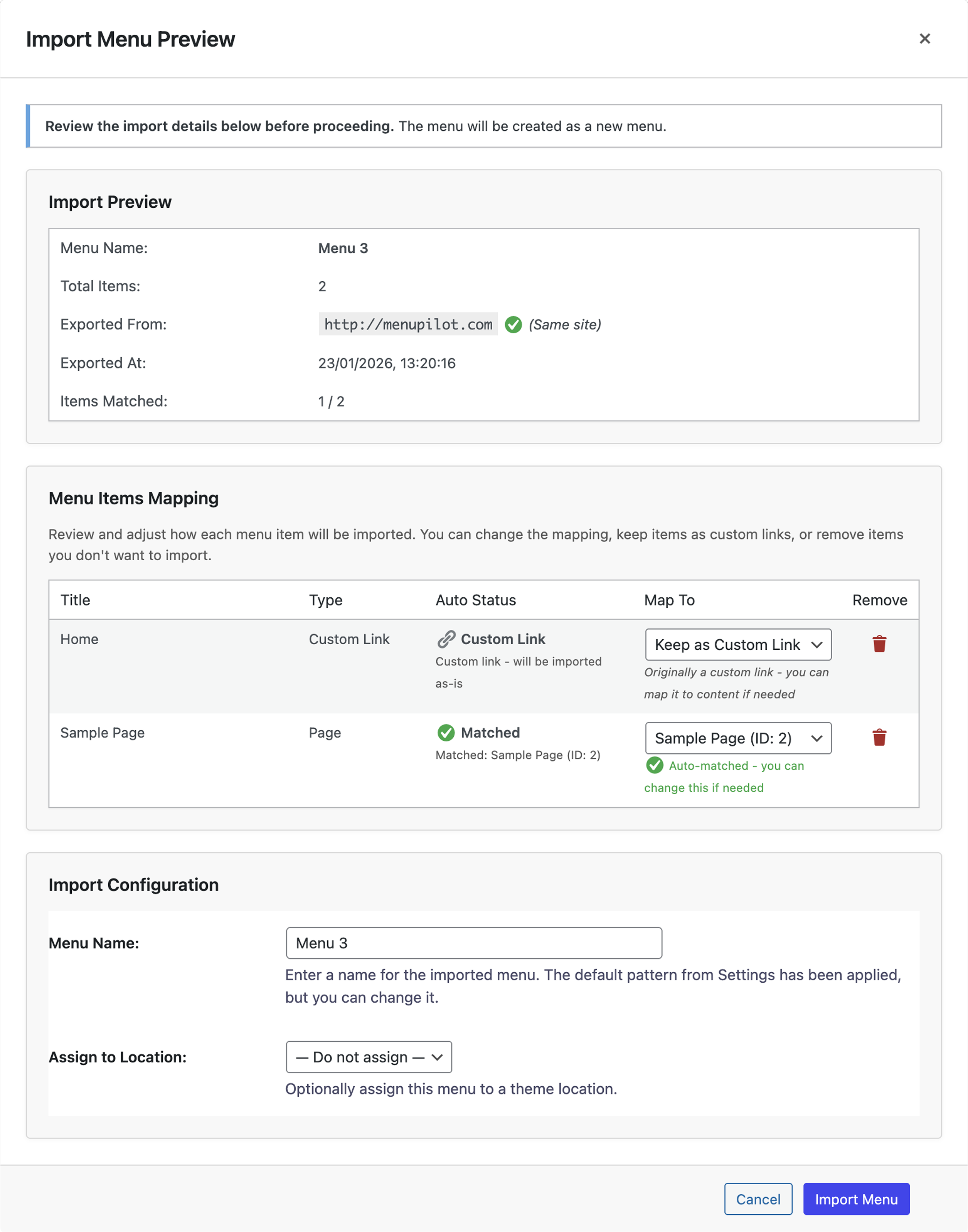
- Provides a full preview and mapping screen before import
- Intelligently matches menu items to existing content
- Preserves menu hierarchy, order, and metadata
- Replaces source site URLs with destination site URLs automatically
- Creates automatic backups before menu updates and imports
- Logs all import and export actions for accountability
What MenuPilot Does Not Support
- Multisite — Each subsite is managed independently; cross-site menu copying is not supported
- Bulk export/import — MenuPilot handles one menu at a time by design
- Mega menu metadata — Custom fields added by mega menu plugins are not preserved
- WP-CLI — No command-line interface; all operations are performed in the admin UI
- Scheduled/automated imports — Imports are triggered manually; no cron or automation support
- Media files — Images referenced in menu items are not bundled in exports
- Non-standard menu item types — Only core WordPress types (post, page, taxonomy, custom link) are supported
Features
- Backup & Restore:
- Automatic backups before every menu update and import
- Manual backup creation from the Menus page
- One-click restore to any previous backup
- Export backups as JSON for portability
- Configurable backup limit (Backup Settings tab)
- Import/Export History Logs:
- Dedicated History page under MenuPilot menu
- Logs who, when, and what for every import/export
- Download logs as JSON or plain text
- Clear history with confirmation
- Export individual menus (JSON format)
- Import one menu at a time as a new menu
- Preview screen before import showing:
- Menu name
- Total menu items
- Source site URL
- Export timestamp
- Matched and unmatched items
- Intelligent auto-matching of menu items using:
- Post type + slug
- Taxonomy + slug
- Normalized custom links
- Manual mapping override per menu item
- Clear warnings for:
- Missing pages, posts, or taxonomies
- Items converted to custom links
- Theme location availability
- Automatic home URL replacement during import
- Preserves:
- Menu hierarchy
- Menu order
- CSS classes
- Link attributes (target, rel)
- Descriptions
- Visual import progress and clear success/error messages
- Native WordPress admin UI (no custom frameworks)
Requirements
- WordPress 5.8 or higher
- PHP 7.4 or higher
- Classic WordPress menu system
Configuration
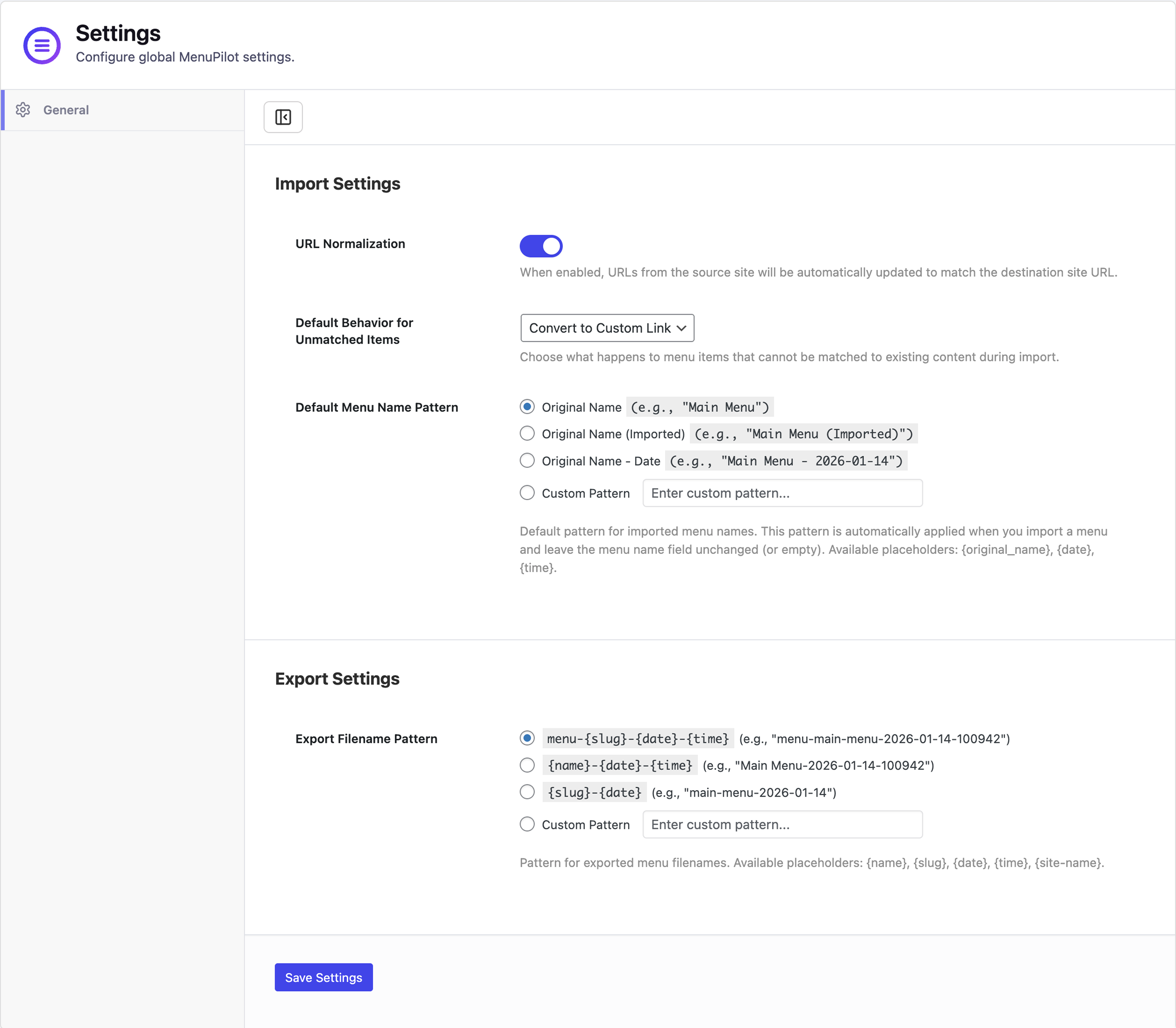
MenuPilot requires no configuration to start using. Once activated, you can immediately export and import menus.
Optional: Go to MenuPilot Settings and open the Backup tab to configure the maximum number of backups to keep per menu (default: 5).
Usage
Backup & Restore
- When editing a menu, scroll to the MenuPilot Backup & Restore section below the menu form.
- Use the Backup tab to create manual backups, restore previous versions, or export backups as JSON.
- Use the Import tab to import a previously exported backup JSON file.
- Backups are also created automatically before every menu save and before every import.
History Logs
- Navigate to MenuPilot History in the WordPress admin.
- View all import and export actions with user, timestamp, menu name, and outcome.
- Use the Filter button to narrow results by date range or user.
- Download logs as JSON or plain text for record-keeping or auditing.
- Use Clear History to remove all log entries (with confirmation). Export first if you need a backup.
Exporting a Menu
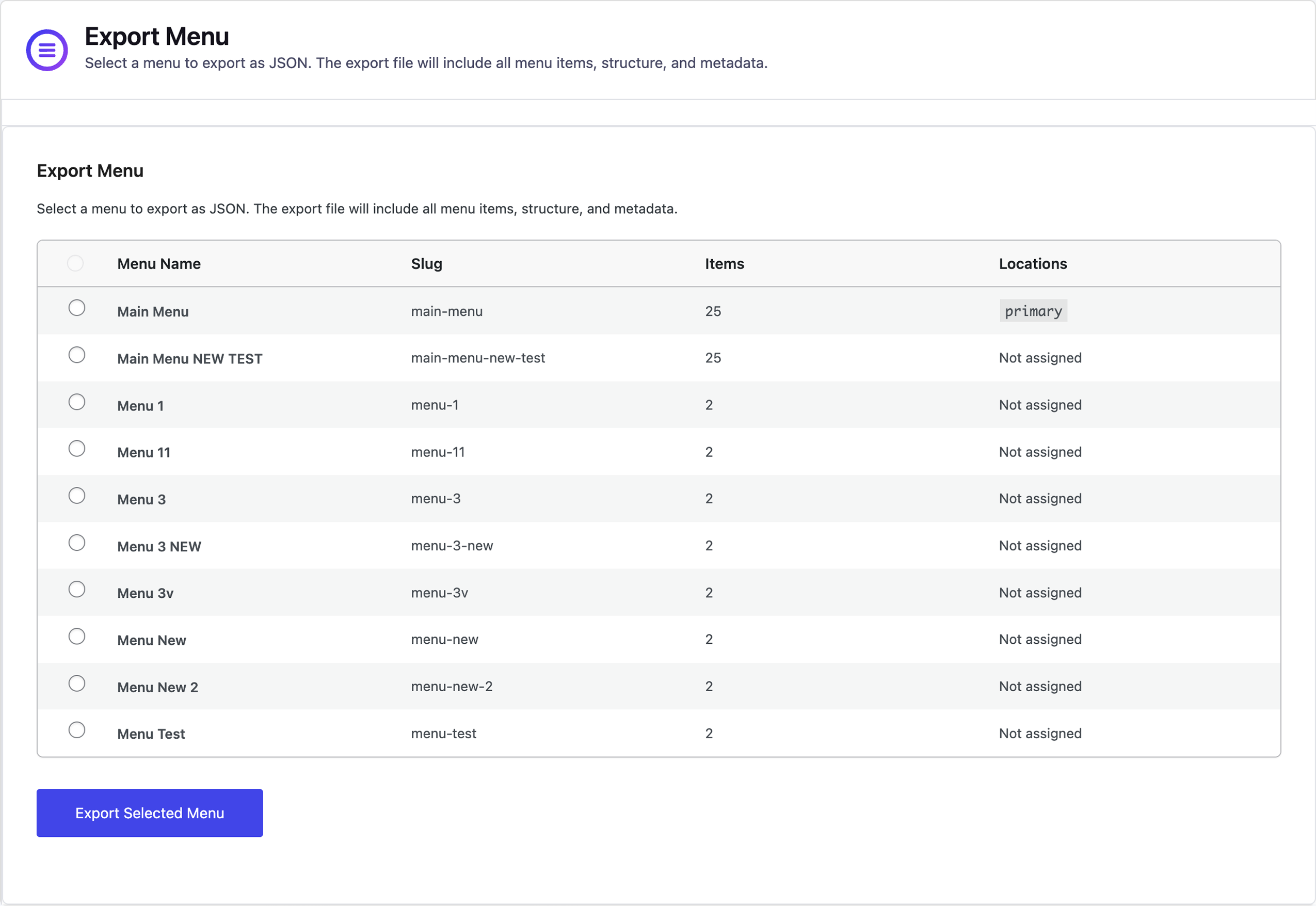
- Navigate to MenuPilot Export Menu in the WordPress admin.
- Select the menu you want to export from the dropdown.
- Click the “Export Menu” button.
- A JSON file will be downloaded to your computer.
- Save this file for importing to another site.
Importing a Menu
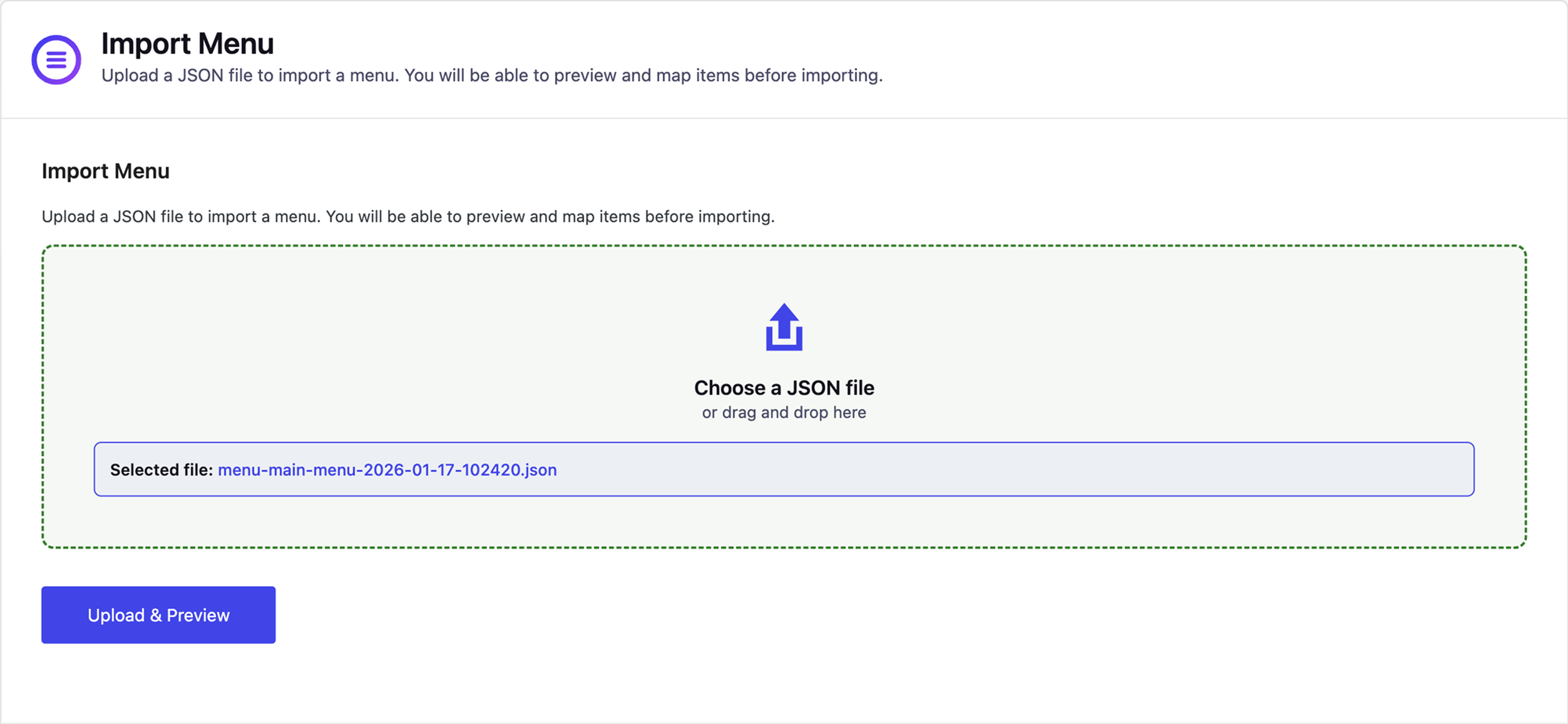
- Navigate to MenuPilot Import Menu in the WordPress admin.
- Click “Choose File” and select a previously exported JSON file.
- Click “Upload & Preview” to see what will be imported.
- Review the preview screen:
- Check menu name (you can edit it)
- Review matched and unmatched items
- Manually map items if needed
- Remove items you don’t want to import
- Optionally assign the menu to a theme location
- Click “Import Menu” to complete the import.
- The menu will be created as a new menu (existing menus are never overwritten).
Important Notes
- MenuPilot always imports menus as new menus – it never overwrites existing menus.
- Always review the preview screen before importing to ensure items are matched correctly.
- Unmatched items will be converted to custom links automatically.
- You can manually map items to different content using the “Map To” dropdown in the preview.
Screenshots
Analytics
Live from WordPress.org, refreshed daily. Last refresh Oct 16, 2026.
- Passes 1 of 3 health checks below.
Health checks
What a careful site owner looks at before installing.
- Actively maintained Last release 7 months ago
- Tested with current WordPress Tested up to 6.9.10, 2 releases behind
- Support questions answered Nothing open in the last two months
- Well rated No ratings yet
- Latest week
- 14
- Typical week
- 19
- Peak
- 251 Week of Mar 13
View as table
| Week | Downloads |
|---|---|
| Week of Oct 9 | 14 |
| Week of Oct 2 | 14 |
| Week of Sep 25 | 12 |
| Week of Sep 18 | 14 |
| Week of Sep 11 | 23 |
| Week of Sep 4 | 10 |
| Week of Aug 28 | 11 |
| Week of Aug 21 | 13 |
| Week of Aug 14 | 12 |
| Week of Aug 7 | 10 |
| Week of Jul 31 | 18 |
| Week of Jul 24 | 11 |
| Week of Jul 17 | 9 |
| Week of Jul 10 | 15 |
| Week of Jul 3 | 7 |
| Week of Jun 26 | 5 |
| Week of Jun 19 | 8 |
| Week of Jun 12 | 20 |
| Week of Jun 5 | 19 |
| Week of May 29 | 28 |
| Week of May 22 | 14 |
| Week of May 15 | 23 |
| Week of May 8 | 20 |
| Week of May 1 | 20 |
| Week of Apr 24 | 24 |
| Week of Apr 17 | 27 |
| Week of Apr 10 | 17 |
| Week of Apr 3 | 36 |
| Week of Mar 27 | 20 |
| Week of Mar 20 | 39 |
| Week of Mar 13 | 251 |
| Week of Mar 6 | 39 |
| Week of Feb 27 | 18 |
| Week of Feb 20 | 29 |
| Week of Feb 13 | 19 |
| Week of Feb 6 | 55 |
| Week of Jan 30 | 28 |
| Week of Jan 23 | 57 |
Not ranked yet. Install, download and rating ranks cover the 5,000 most popular plugins on WordPress.org, and Trending needs about 100 downloads on a typical day.
Building the install history
WordPress.org only publishes today's install count, so WPFolks records it daily. The chart appears after two weeks.
Day 3 of 14Reviews
From folks on WPFolks
No reviews from folks yet. Used it? Be the first to say how it went.