





About This Plugin
Image Preview for ACF Field is a WordPress plugin that enhances the Advanced Custom Fields (ACF) experience by adding visual help images to your fields. When users click on a help icon next to an ACF field, a modal popup appears showing a relevant help image.
Features
- Visual Help Images – Add preview images to ACF fields for visual guidance.
- Modal Popup – Clicking the help icon opens a clean, responsive popup.
- Easy Integration – Seamlessly integrates with the ACF UI.
- Responsive Design – Works well on all screen sizes.
- Universal Compatibility – Supports all ACF field types.
Usage
- Create or edit a field group in ACF.
- For any field, you’ll see a “Preview Image” option—enable it.
- Upload or select an image to be shown as a visual help.
- Save the field group.
- When editing a post or page, a small help icon will appear next to the field.
- Click the icon to view the help image in a popup.
Requirements
- WordPress 5.0 or higher
- Advanced Custom Fields (ACF) plugin
Privacy & Data Collection
Your Privacy Matters
This plugin respects your privacy and operates with full transparency:
- No Automatic Data Collection – The plugin does not collect or transmit any data without your explicit consent
- Opt-In Telemetry – You can optionally enable anonymous usage tracking from Settings > ACF WYSIWYG Limit to help improve the plugin
- Deactivation Feedback – When deactivating, you can choose to share feedback to help us improve. This is completely optional
- No Personal Content – We never collect your post content, user passwords, or sensitive information
- What We Collect (Only if you opt-in):
- Plugin version and settings
- WordPress and PHP versions
- Theme information
- Site language and multisite status
- Anonymous site URL (for duplicate detection only)
Deactivation Feedback
When you deactivate the plugin, a feedback modal appears asking for your reason. This helps us improve the plugin:
- Completely Optional – You can skip and deactivate immediately
- Contact Consent – Check the consent box only if you want us to follow up with support
- Your Choice – Your name and email are only sent if you check the consent checkbox
Screenshots
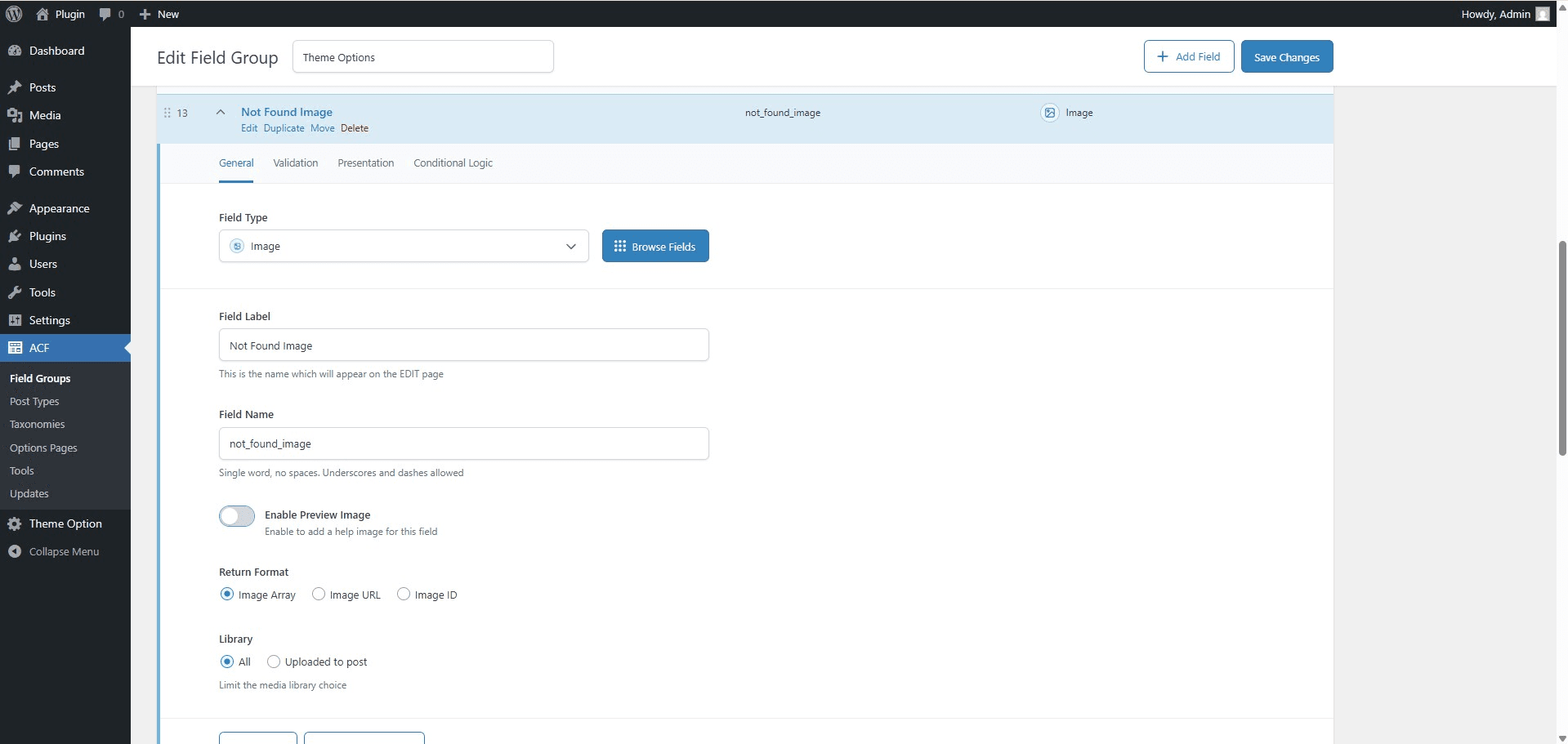 Enable Preview Image Option - In the ACF field settings, enable the "Preview Help Image" option to allow image-based assistance.
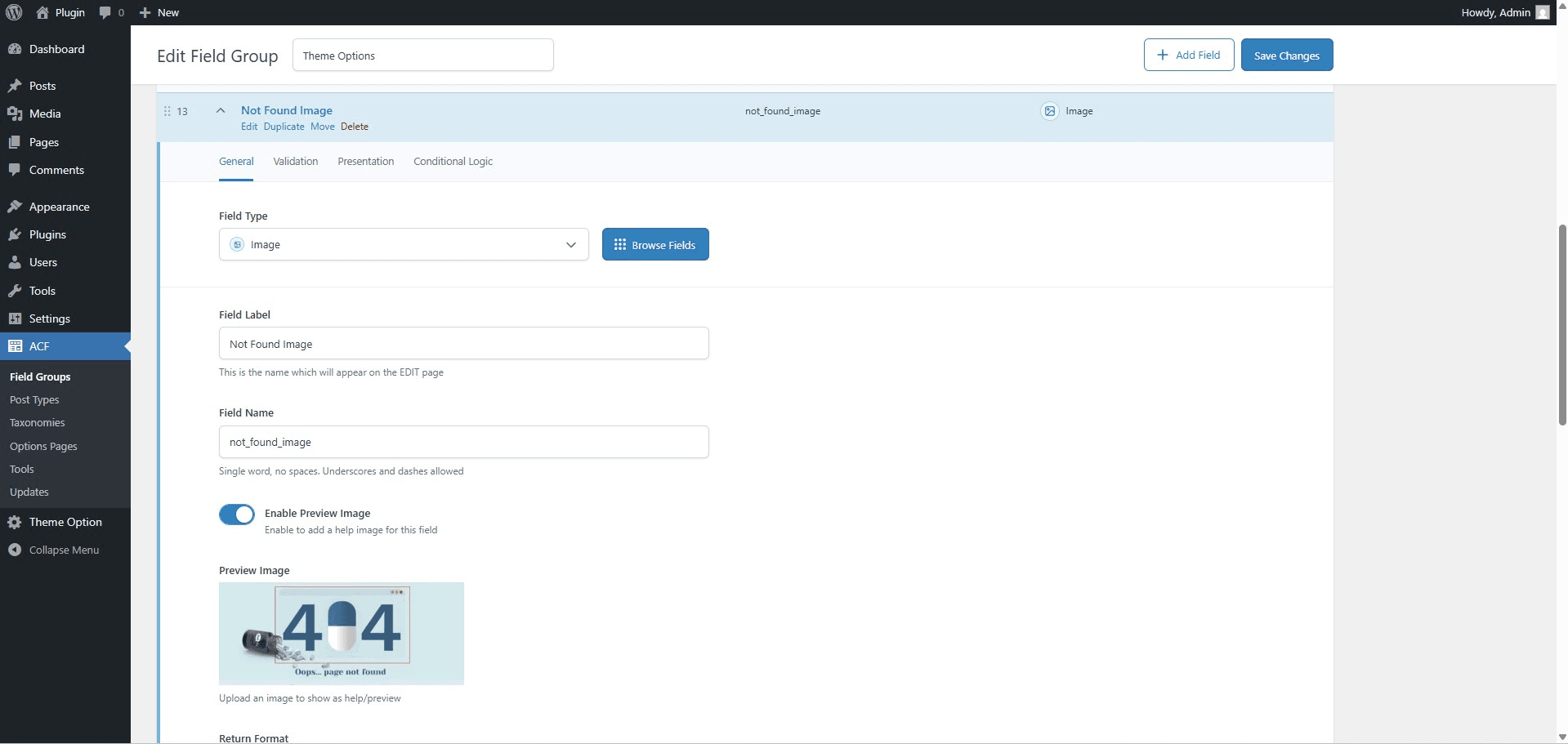 Upload Help Image - Upload a relevant help image for the selected ACF field using the new image upload field.
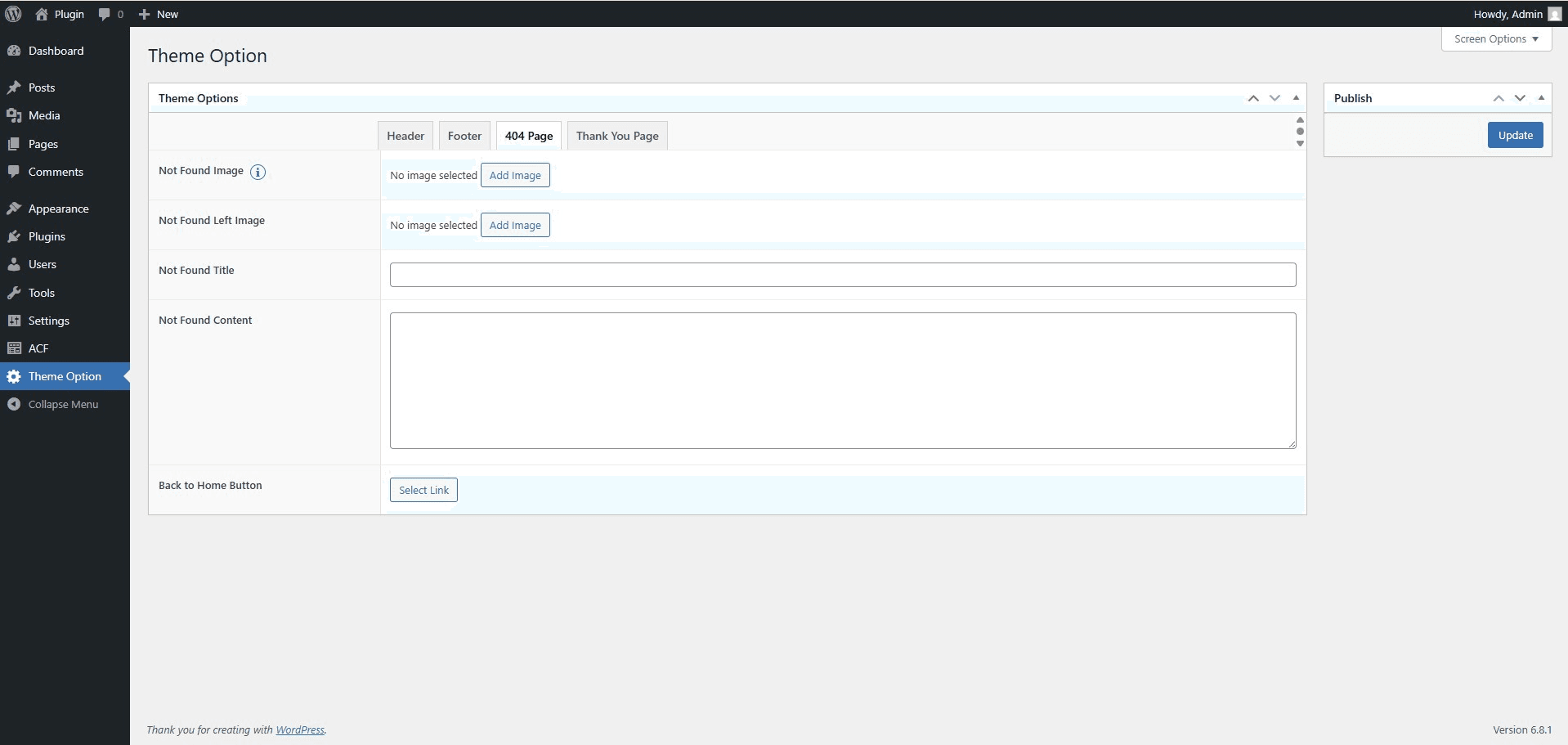 Help Icon Next to Field - A help icon appears next to the ACF field on the edit screen, indicating visual assistance is available.
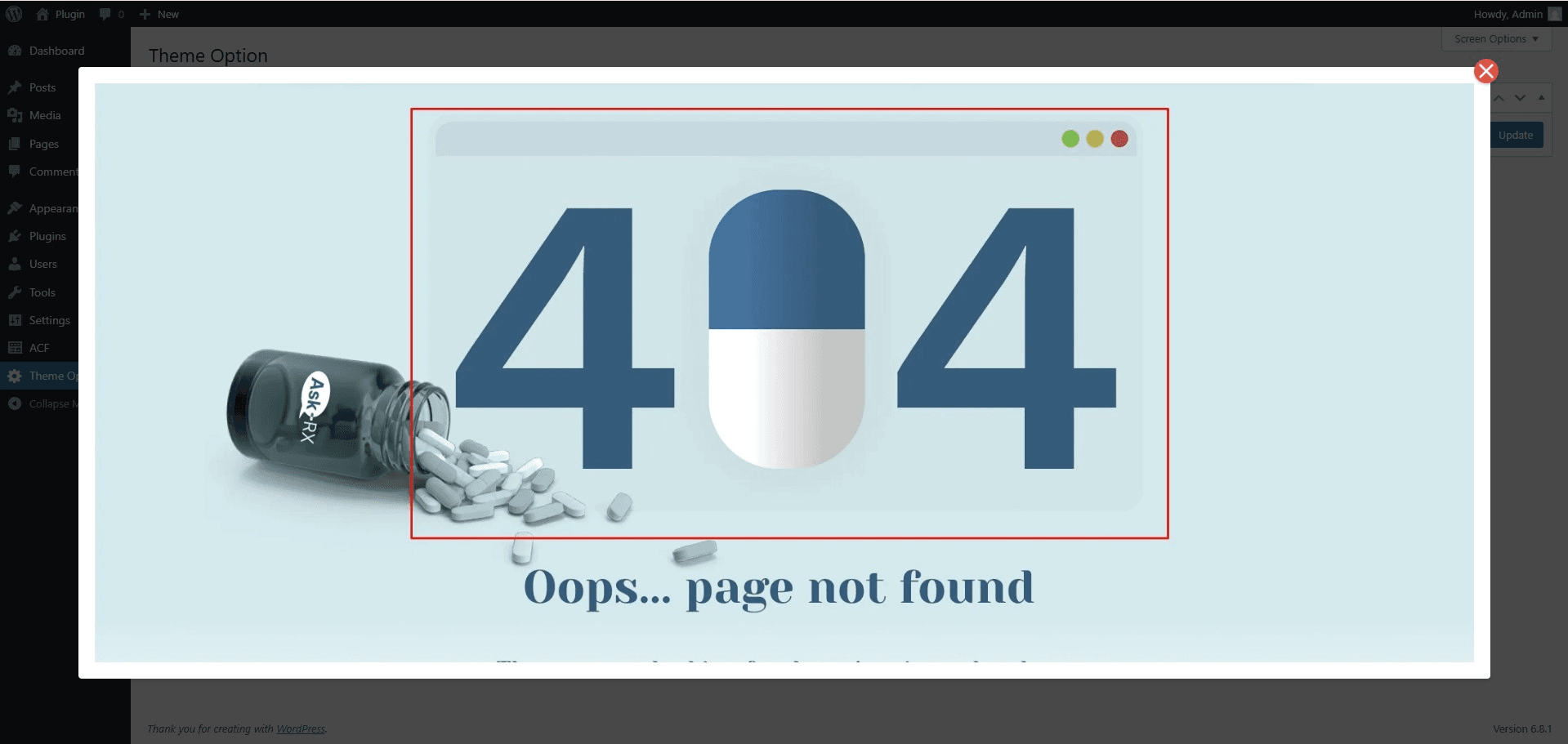 Popup Preview of Help Image - Clicking the help icon opens a responsive modal popup displaying the help image for quick guidance.