




About This Plugin
MCP Manager uses the standard @automattic/mcp-wordpress-remote@latest package with WordPress Application Passwords for the default remote flow. It also includes an optional experimental direct Claude Connectors mode backed by a WordPress-hosted OAuth approval flow.
MCP Manager is a WordPress plugin that enables seamless integration with Model Context Protocol (MCP) servers, allowing AI assistants and code editors to safely access your WordPress instance through secure application passwords.
Key Features
-
Multi-Client Support: Configure MCP for:
- VS Code with Copilot
- Claude Desktop App
- GitHub Copilot & Codex
- OpenAI ChatGPT Codex
- Custom MCP Clients
-
Secure Authentication: Uses WordPress native Application Passwords system
- One-click password generation
- Secure credential management
- Password revocation support
- Per-server Access Control still enforced after authentication
-
Easy Configuration:
- Copy-paste ready JSON configurations
- Per-provider configuration file paths
- Automatic top-level key detection
-
Format #1 Standard: Uses the Automattic-recommended MCP configuration format
- npx command execution
- @automattic/mcp-wordpress-remote@latest package
- Full environment variable support
How It Works
- Navigate to Settings MCP Manager
- Select your MCP client (VS Code, Claude, GitHub Copilot, ChatGPT, or Custom)
- Click “Generate New Application Password”
- Copy the ready-to-use JSON configuration
- Paste into your client’s configuration file
- Restart your MCP client
All application passwords are managed through WordPress’s native Application Passwords system and appear in your profile under Account Management.
CLI Connection and Authorization Flow
MCP Manager also supports a browser-assisted CLI connection flow for local MCP clients.
Typical command:
npx -y @acrossai/mcp-manager --siteurl=https://example.com --server=default-mcp-server
Flow summary:
- The CLI checks
/wp-json/acrossai-mcp-manager/v1/health - The CLI starts auth with
/wp-json/acrossai-mcp-manager/v1/auth/start - WordPress returns an
auth_codeand frontendauth_url - The CLI opens the frontend approval page at
/acrossai-mcp-manager/ - If needed, the user signs in through normal WordPress login
- The signed-in user approves access in the browser
- The CLI polls
/auth/statusuntil the request is approved - The CLI fetches the approved user’s accessible servers from
/servers - The CLI exchanges the approved code at
/auth/exchange - WordPress creates a one-time Application Password and the CLI writes the MCP client config
Terminology:
- Sign in / Log in = WordPress account authentication
- Connect = starting the CLI-to-site linking flow
- Authorize / Approve access = granting the CLI permission in the browser
Important notes:
- The frontend authorization page must never be cached
- Auth codes are single-use
/serversand/auth/exchangerespect per-server access control- User-facing copy should say CLI Connections rather than npm Login
- Generated remote MCP configs use Application Passwords and explicitly disable OAuth discovery in
@automattic/mcp-wordpress-remote
Experimental Direct Claude Connectors
An optional Claude Connectors Screen (Experimental) setting can enable a direct OAuth flow for Claude’s hosted connectors.
When the global feature toggle is enabled and a specific server is configured in its Claude Connector tab, the plugin exposes:
/.well-known/oauth-authorization-server/.well-known/oauth-protected-resource?resource=<mcp-url>/acrossai-mcp-connectors/oauth/authorize//wp-json/acrossai-mcp-manager/v1/connector/oauth/token
Important notes:
- Disabled by default
- The Application Password flow remains available and supported
- The master experimental toggle is global, but OAuth client settings are stored per server
- Direct connector approval signs Claude in as a WordPress user
- Per-server Access Control still applies to every MCP request after OAuth
- Public HTTPS is recommended for hosted connector usage
Provider Configuration Paths
- VS Code: ~/.config/Code/User/globalStorage/Copilot.copilot-chat/mcp.json (top-level key: “servers”)
- Claude: ~/Library/Application Support/Claude/claude_desktop_config.json (top-level key: “mcpServers”)
- GitHub Copilot: ~/.gh-copilot/config.json (top-level key: “servers”)
- OpenAI ChatGPT: ~/.config/chatgpt/config.json (top-level key: “servers”)
- Custom: ./your-project/.mcp/config.json (top-level key: configurable)
Requirements
- WordPress 5.9 or higher
- PHP 8.0 or higher
- WordPress Application Passwords support (built-in since WP 5.6)
Support & Contribution
For issues, feature requests, or contributions, visit the plugin repository.
Questions? Check the FAQ section or look for documentation in the plugin settings page.
Development
This plugin follows WordPress coding standards and best practices:
– PHP 8.0+ compatible
– Full object-oriented architecture
– Secure nonce verification
– Proper capability checks
– Sanitized input validation
– Escaped output
License
This plugin is licensed under the GPL-2.0-or-later license. See LICENSE file for details.
Credits
MCP Manager is built with:
– WordPress native APIs
– Automattic’s MCP WordPress Remote package
– WordPress Application Passwords system
Developed with ❤️ for the WordPress community.
Screenshots
 Overview tab: your WordPress MCP server at a glance, with the live endpoint URL for your AI client and every supported client listed.
 CLI connections: connect Claude Code or another terminal client with one command, approve in the browser, and review every attempt in the audit log.
 Clients tab: pick your AI client, generate an Application Password in one click, and copy JSON with the right file path and key.
 AI Connectors: paste one URL into Claude, ChatGPT, Gemini, Grok or Cursor and approve the consent screen on your own site.
 WP-CLI STDIO: the client launches WP-CLI as a subprocess, so no credential crosses the network.
 Tools tab: choose exactly which abilities this MCP server advertises.
 Abilities tab: switch individual abilities on or off per server, with search, filters and bulk actions.
 Access control: decide who may reach each server by user, role or capability. New servers are administrator-only.
 Multiple MCP servers on one site, each with its own route, tools and rules.
 Global settings, including CLI connections and a non-destructive uninstall.
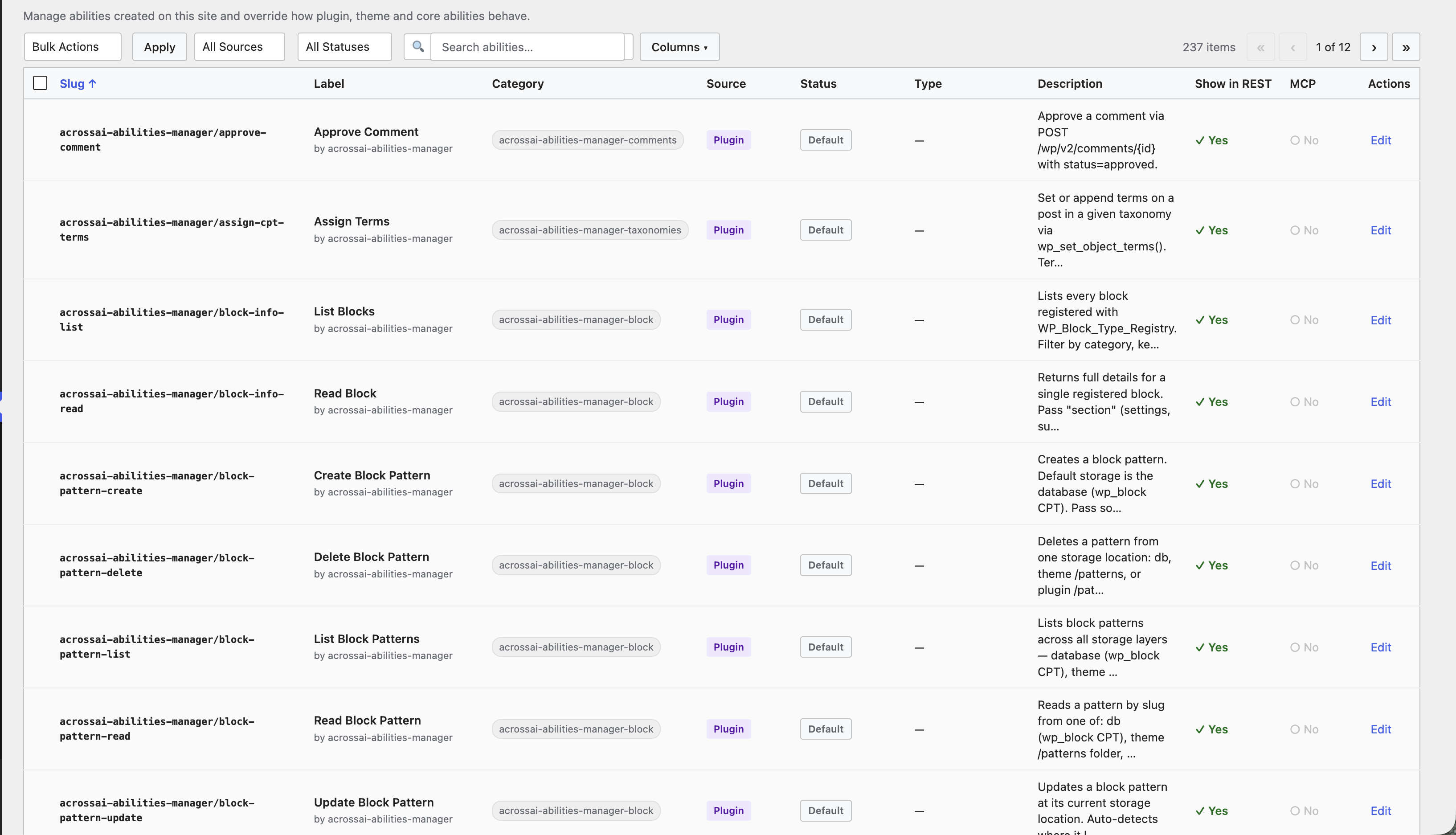 The abilities table: every registered ability, searchable and sortable.
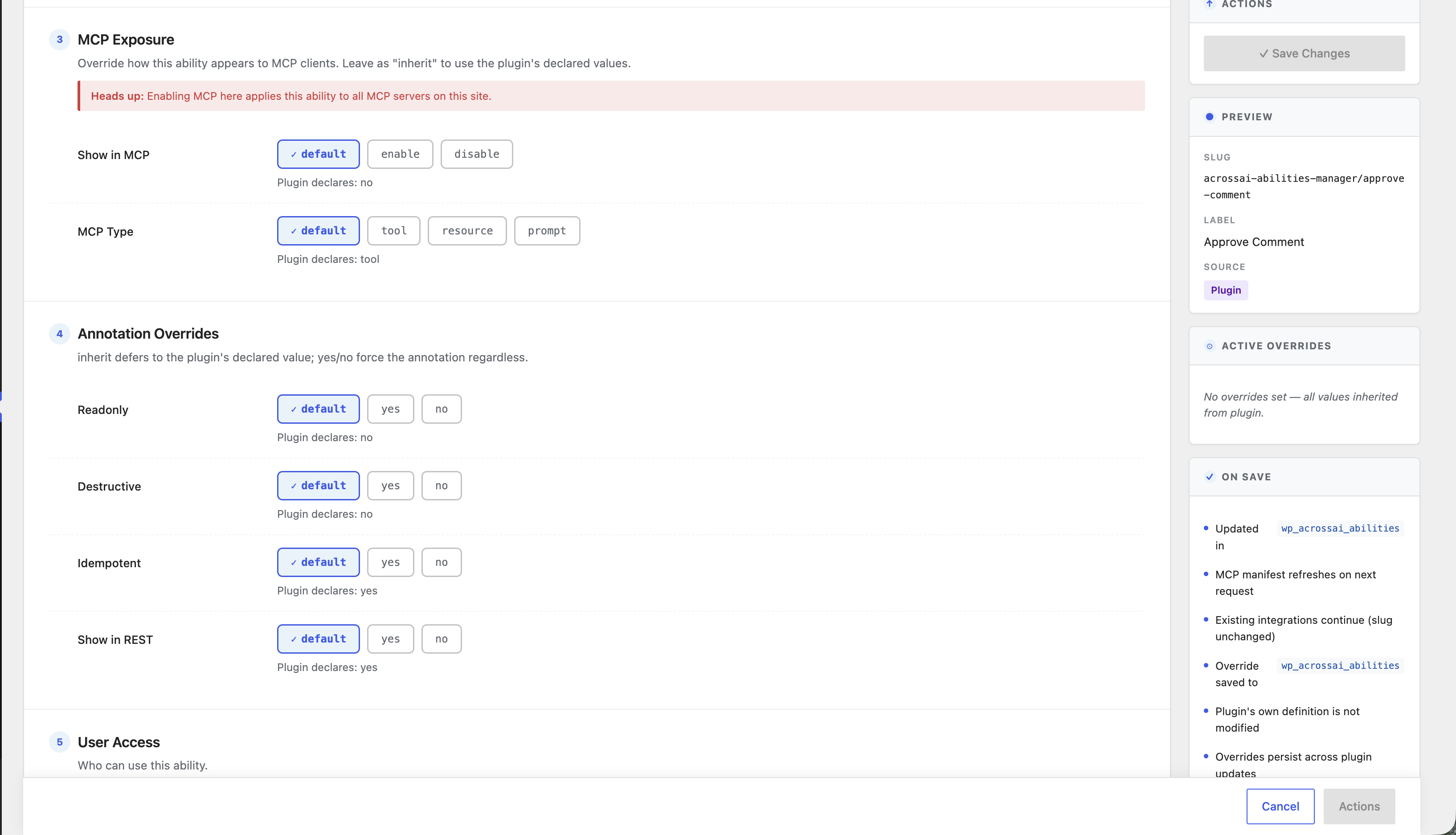
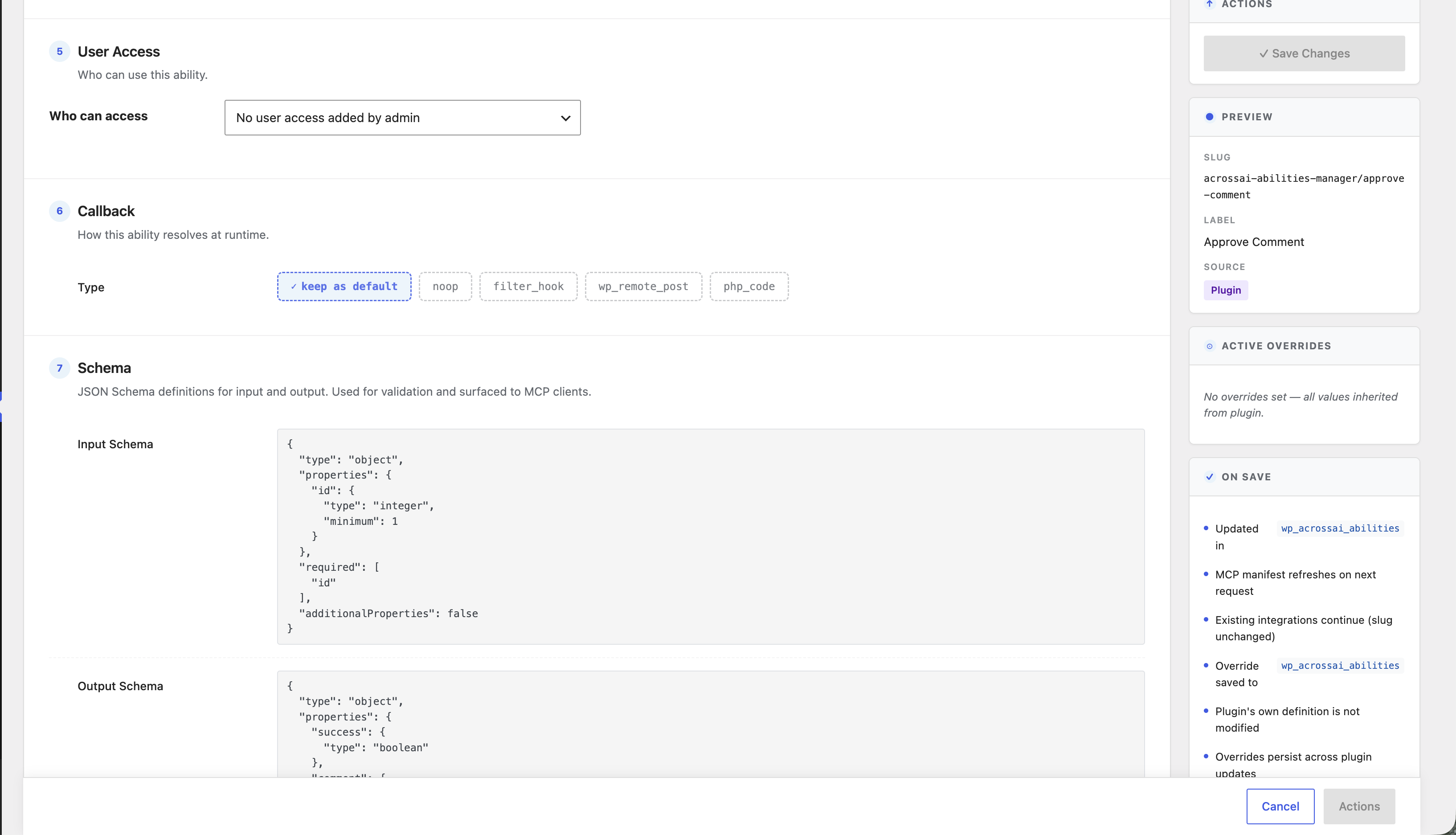
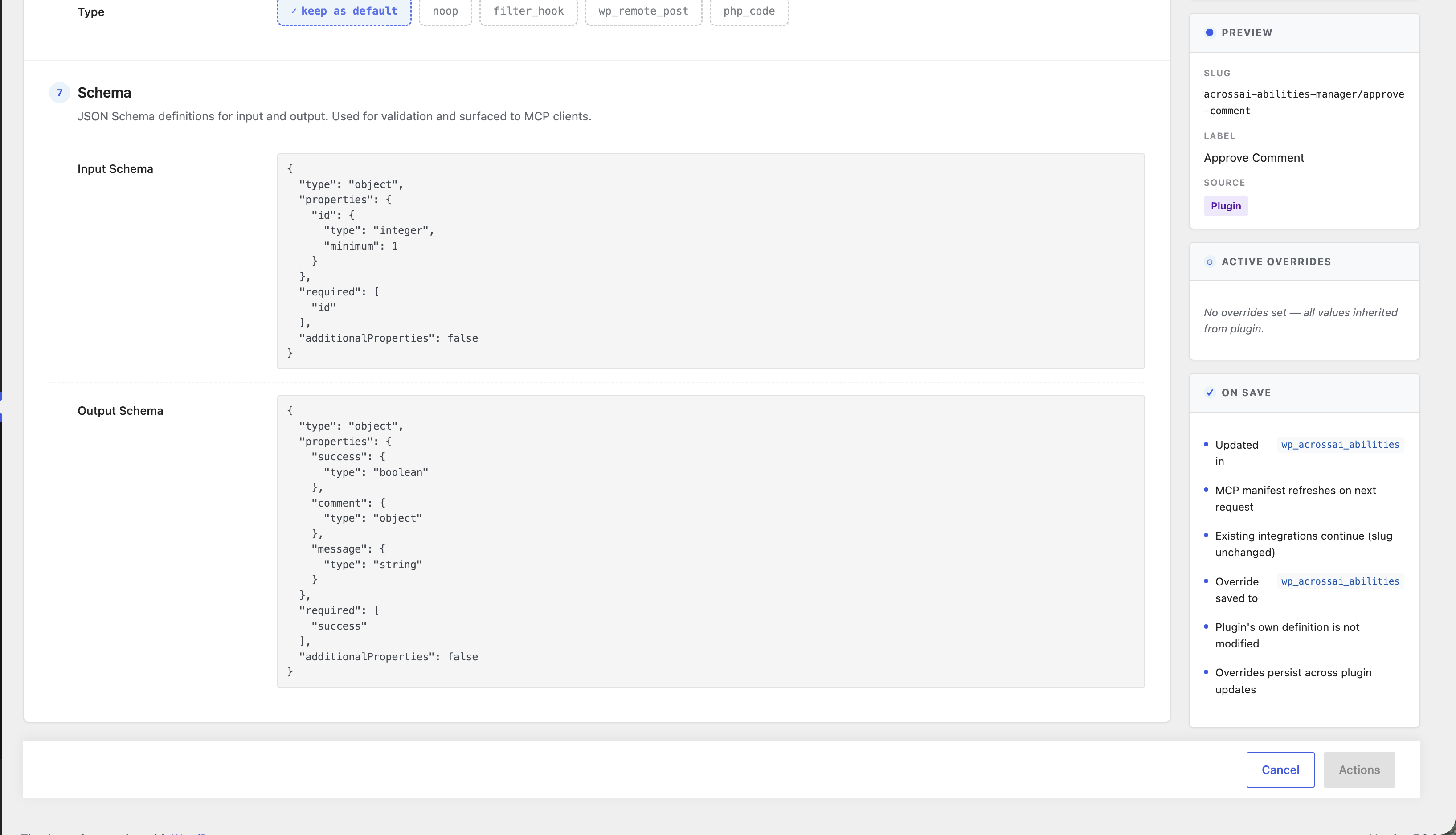
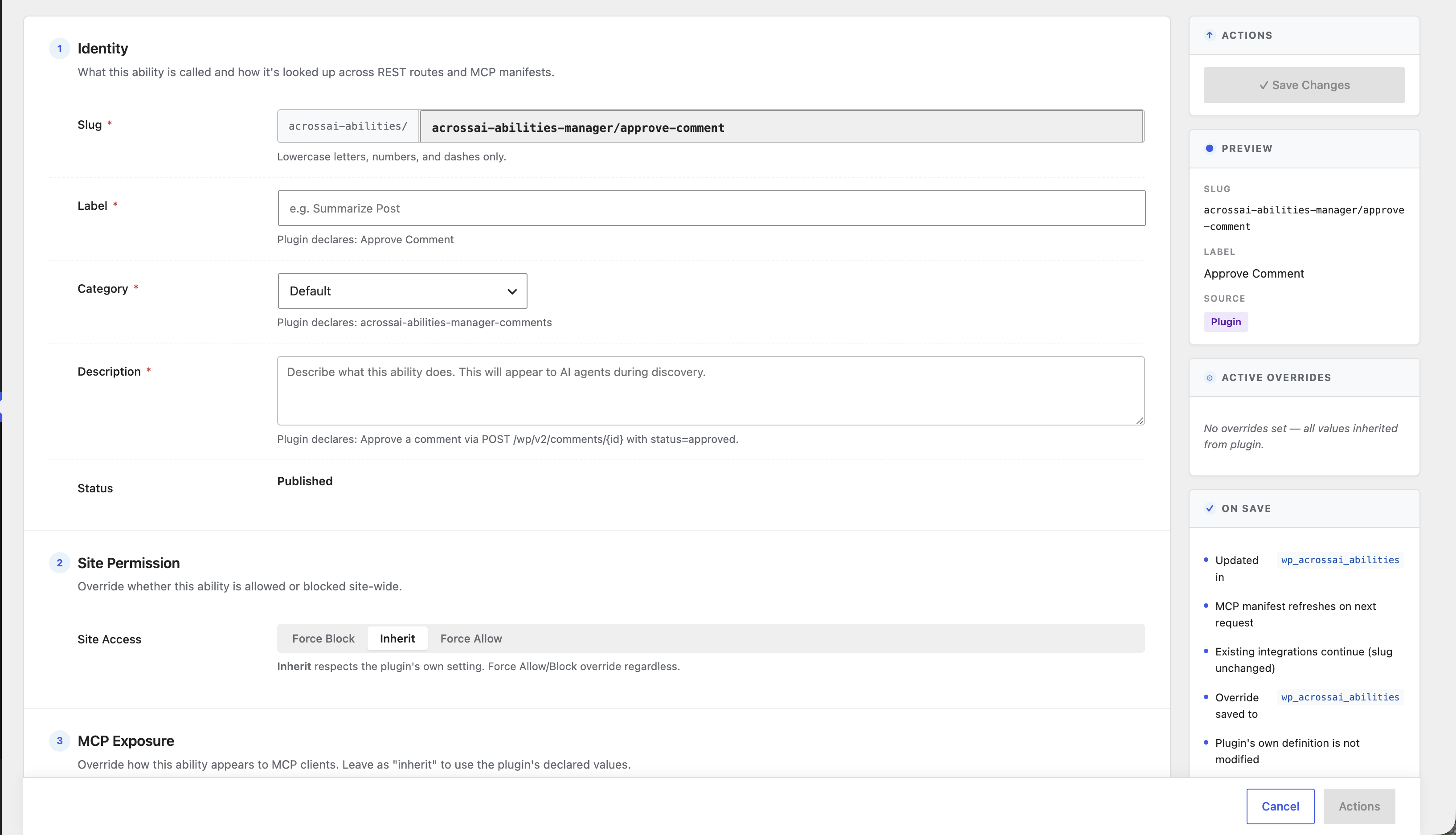 The edit drawer: Yes / No / Inherit override controls for each ability field.
 Bulk actions to allow, disallow or reset many abilities at once.
 The Ability Library: enable or disable whole ability groups.
 The Add-ons page: browse free companion plugins.
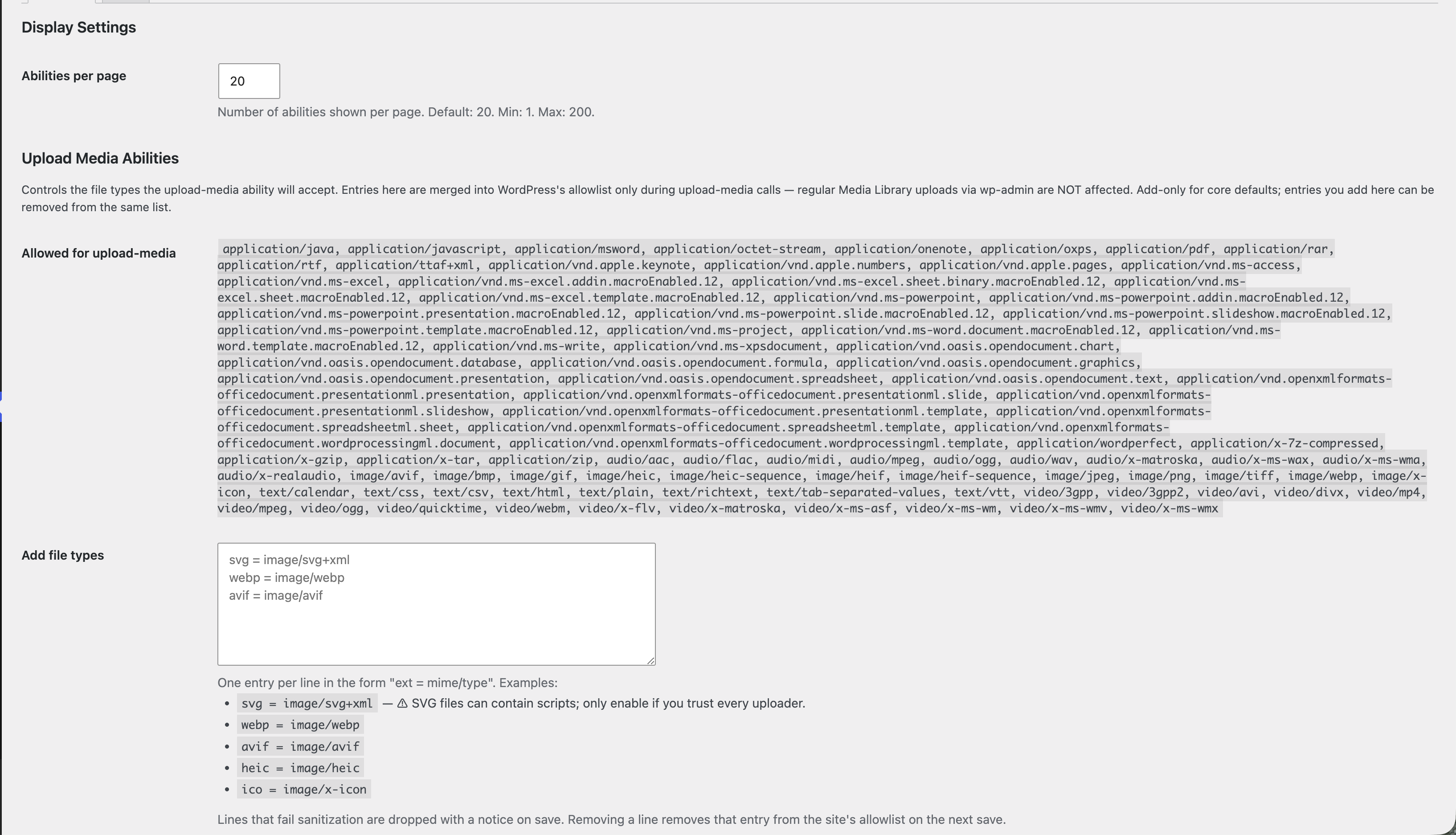 Abilities settings: abilities per page and allowed upload file types.